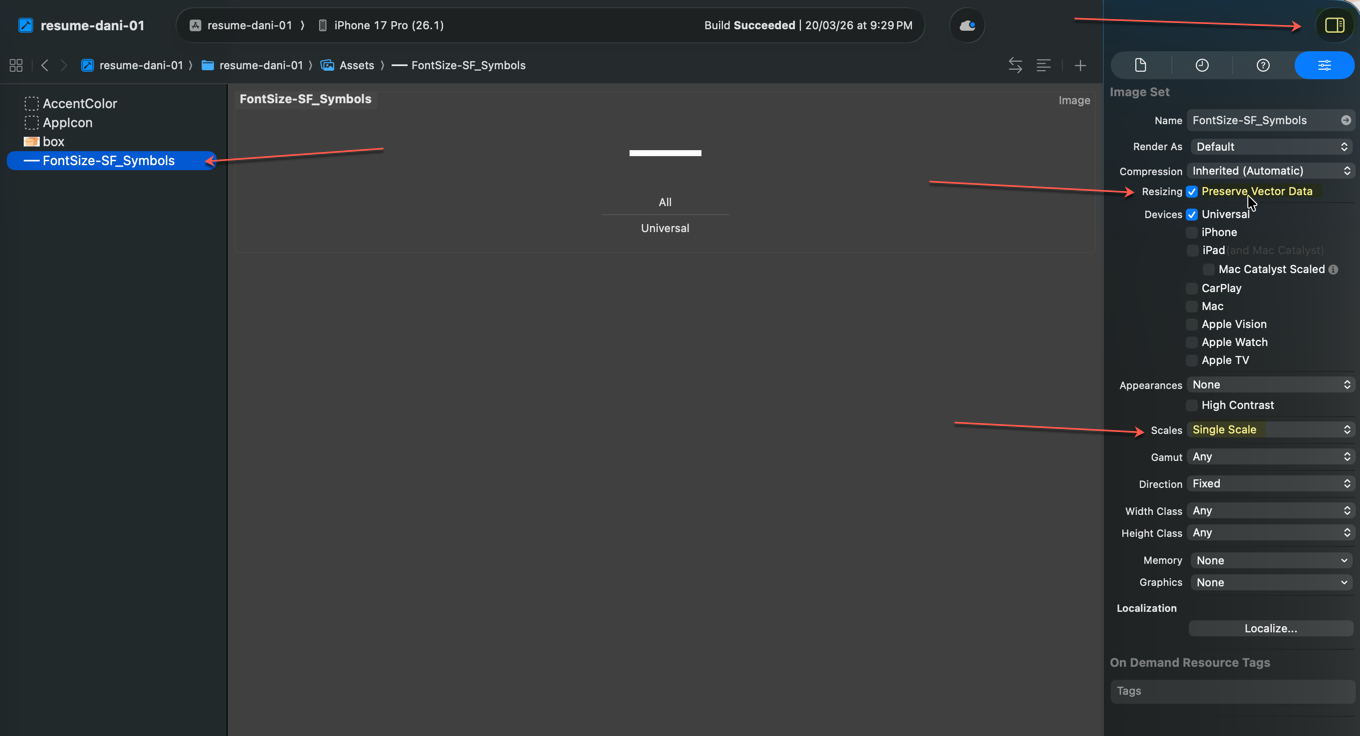
Preserve vector data & Single Scale
Good question. No, you don't have to manually create 2x and 3x versions of every image. Here are the practical options:

1. Use a single PDF or SVG vector asset (Recommended for icons/illustrations)
• Drop in one PDF or SVG file
• In the asset catalog, set "Scales" to Single Scale and check Preserve Vector Data
• Xcode renders it at any resolution automatically — no 2x/3x needed

2. Use a single high-res PNG at 3x
• Add just the 3x image and put it in the 3x slot
• Leave 1x and 2x empty — iOS will downscale automatically at runtime
• Not pixel-perfect, but often good enough for photos/content images

3. Automate with a script or tool
• Tools like Iconizer or simple scripts (e.g., using sips on macOS) can batch-generate 1x/2x/3x from a single high-res source
• Example one-liner to downscale:Command
sips -Z 200 input@3x.png --out input@2x.png  # resize to 2x dimensions
sips -Z 100 input@3x.png --out input@1x.png # resize to 1x dimensionsMy recommendation:
• Vector assets (icons, logos, shapes): Use a single PDF/SVG with “Preserve Vector Data” — this is the cleanest approach.
• Photos/raster images: Provide just the 3x version. The quality loss from downscaling is negligible for photos.
• App icon: This is the one place you do need specific sizes, but Xcode 15+ can auto-generate all sizes from a single 1024×1024 image.
Where to look?
It's in the Asset Catalog inspector in Xcode. Here's how to find it:

1. Open Assets.xcassets in your project
2. Select (or add) an image set
3. In the right panel, open the Attributes Inspector (the slider icon, or press ⌥⌘4)
4. You'll see options like:
   • Scales — change this to Single Scale (for vector assets)
   • Preserve Vector Data — a checkbox that appears when you have a PDF/SVG asset

If you don't see the right panel, toggle it with View → Inspectors → Show Inspectors (or ⌥⌘0).

The checkbox only shows up when:
• The asset is a PDF or SVG file
• It won't appear for PNG/JPEG images since those aren't vectors